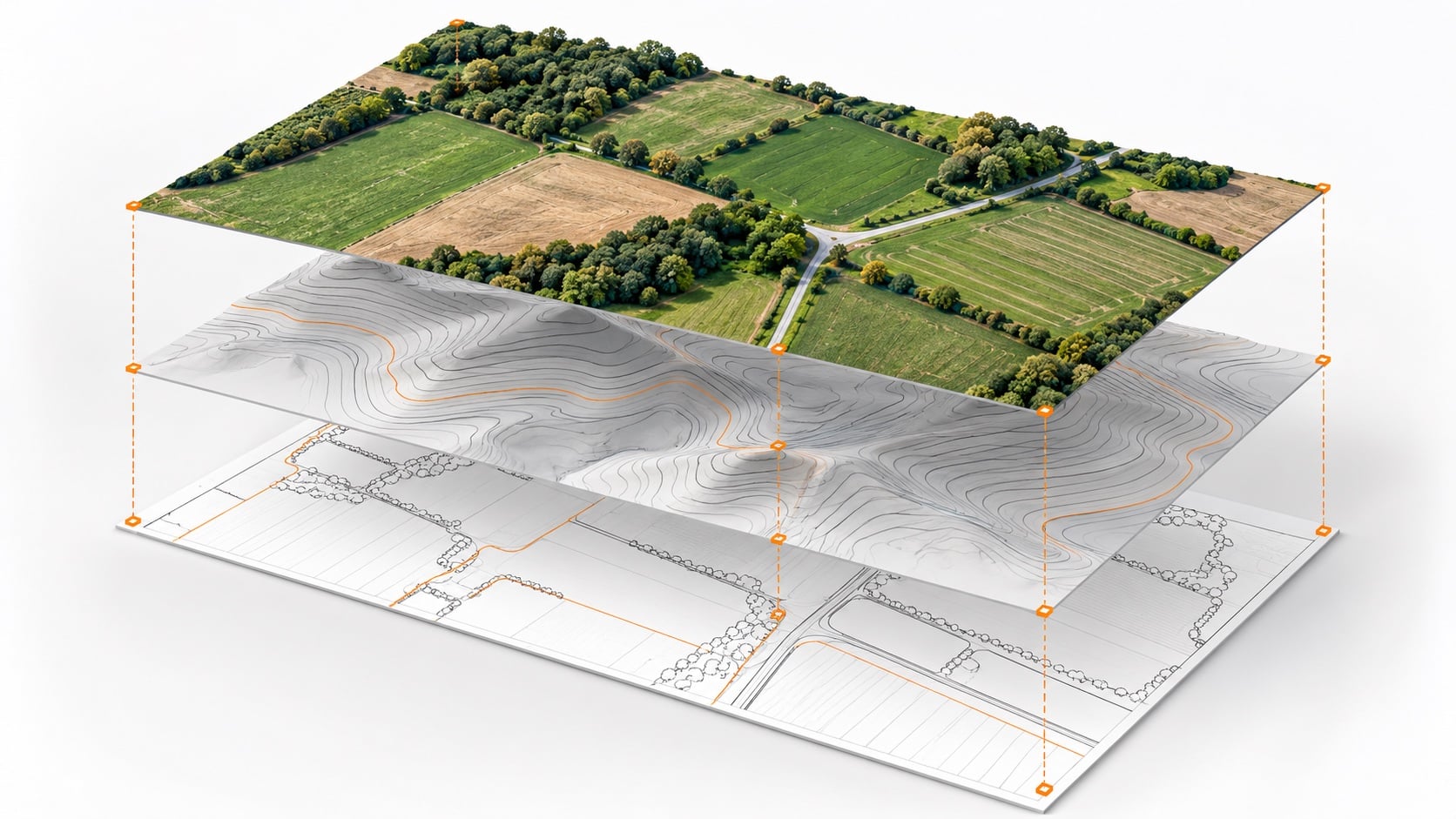
A drone orthomosaic can look sharp in a browser and still create problems when it reaches the office. The image may arrive without a usable coordinate reference, omit part of the project limits, or contain a seam through the feature your technician needs to trace. A file that opens is only the beginning of acceptance.
For a survey firm, a useful orthomosaic needs three things: documented spatial reference, image quality appropriate to the work, and a delivery package that behaves correctly in the receiving software. Agree on those requirements before collection, then check the exported deliverable against them.
Our guide to orthomosaics and orthorectification explains how these images are produced. Here, the focus is the next step: deciding whether the finished file is ready for your team to use.
Define acceptance before the flight
Start with the intended task. An image for progress communication may need a different review from one supporting planimetric feature extraction. Write down the project limits, required capture date, target pixel size, horizontal reference system and units, positional accuracy requirement, and delivery format. Identify the CAD or GIS application and version that will receive it.
Also specify what must be visible. If a client needs pavement edges or drainage structures, a general promise of complete coverage is too vague. Shadows, vegetation, vehicles, and buildings can obscure features within an otherwise complete image. Define how those areas will be flagged and whether supplemental fieldwork is needed.
Keep pixel size separate from positional accuracy. A small ground sampling distance does not establish how closely mapped locations agree with independently surveyed locations. Request the validation method and results appropriate to the project. For a horizontal accuracy assessment, use suitable independent checkpoints that were withheld from adjustment; do not substitute the processing report's control residuals for that independent check.
Inspect the image at working scale
Review the full extent first, then inspect representative areas at the scale your staff will use. Check the perimeter, narrow corridors, elevation transitions, and locations important to the scope. A quick view of the center of the site can miss problems at the edges.
Look for blur, doubled features, abrupt tonal changes, voids, and seams that interrupt visible geometry. Pay particular attention to road markings, curb lines, fence corners, and other distinct features crossing image boundaries. Raised objects can show displacement or distortion depending on the imagery and surface model used during orthorectification. A clean-looking roof does not establish a correct ground location.
Review each issue against the intended task. A change in image appearance and a problem that prevents reliable feature interpretation can have different consequences.
- Tonal differences: Check whether lighting or color transitions affect the visibility of the features needed for the job.
- Geometry: Hold areas with duplicated or distorted features for review before using them to trace linework.
- Obstructions: Identify areas where vegetation, shadows, or other objects prevent the required feature from being observed, and decide what additional observations are needed.
Save the review locations and decisions. A short issue log with a screenshot, location, reason, and disposition gives the processor something specific to fix and gives the receiving technician a record of remaining limitations.
Request a GeoTIFF with a readable delivery note
GeoTIFF stores georeferencing information within the TIFF framework. That makes it useful for geospatial exchange, but the file format does not certify accuracy or tell you whether its bands represent imagery or elevations. Inspect the contents and metadata.
For an RGB orthomosaic, the delivery note should identify:
- The file name, revision, capture date, processing date, and covered area.
- The full horizontal CRS definition and identifier where applicable, datum or reference-frame details needed for the project, and coordinate units. Document any local-grid transformation separately.
- The exported pixel size, raster dimensions, band interpretation, NoData or mask behavior, and any tiling or compression choices that affect compatibility.
- The positional validation report, known limitations, excluded or obscured areas, and the intended use.
- All required companion files, their purpose, and the receiving application/version used for the handoff check.
A world file can describe pixel placement, but it does not by itself provide the full CRS definition. Keep any required companion files with their matching raster names. Avoid bundling stale world files or auxiliary files from earlier revisions: software can use external georeferencing, and conflicting metadata can change how a raster is interpreted.
For large deliverables, agree on a compatible large-file format or tiling strategy and test it with the recipient. Preserve a clear master version so a reduced preview or recompressed copy is not mistaken for the accepted deliverable. This is one reason to evaluate mapping software around the final CAD/GIS handoff, alongside processing speed.
Verify the export in the receiving workflow
Use the delivery folder for the receiving check, rather than relying only on the processor's working project. Confirm that the imagery, coordinate information, and companion files fit the software your team already uses, whether that is QGIS, ArcGIS Pro, Civil 3D, or Trimble Business Center. These are examples of receiving environments; the checks below apply across applications.
- Open the delivered raster using the receiving application's appropriate imagery or raster workflow. Keep the file with any companion files identified in the delivery note.
- Inspect its coordinate reference, extent, dimensions, pixel size, bands, and NoData information wherever the application exposes them. Compare that information with the delivery note.
- Set up the receiving project's coordinate system and units deliberately, then load verified reference data. Review coverage and recognizable features across the site, including near the edges.
- Investigate any offset before changing the file. Establish whether the source CRS is missing or mislabeled, a transformation is required, or the reference data uses a different datum, grid, or unit.
- Record the receiving application, relevant settings, reference data, and unresolved issues. Check that the package opens on the receiving workstation before accepting the handoff.
Assigning a different CRS label and reprojecting coordinates are different operations. Do not relabel the source CRS by trial and error to make an image appear to line up. Establish the correct source definition first, then apply a documented transformation if needed. Alignment with an online basemap is a useful visual clue, but it does not replace independent project accuracy checks.
Keep image context and elevation data separate
An RGB orthomosaic supplies visual context. Its color bands are not terrain elevations. An elevation GeoTIFF is a different product, even though both may have a .tif extension. Inspect the data contents and intended use before choosing an import method.
That distinction follows the handoff into CAD, survey, and GIS tools. Civil 3D and Trimble Business Center, for example, document workflows that use an image with a separate surface. The image can help staff interpret visible features while the surface supplies elevation information. Receiving software does not remove the need to validate each product.
For CAD or survey handoffs, confirm the project's coordinate setup and units, the chosen imagery workflow, and the elevation product's horizontal and vertical references. If a surface is delivered, review its source data, boundaries, breaklines where applicable, and validation separately. Image alignment does not validate surface elevations.
That distinction matters when a project progresses to cut-and-fill verification: visual context and a checked terrain surface serve different purposes. Agree on both deliverables when the scope needs both.
Close the handoff with a repeatable check
Before delivery, confirm that the correct revision opens, covers the agreed limits, contains consistent spatial-reference information, and has documented image and positional checks. Keep the issue log and receiving-software record with the accepted files. Record exceptions instead of letting them disappear into an email chain.
A repeatable acceptance process gives field staff, processors, and office technicians the same definition of finished. It also makes the next project easier to scope: the team knows which files to request, which checks to perform, and which limitations require additional work.
Discuss your next project's delivery requirements with SmartDrone. Bring your receiving software, coordinate setup, required outputs, and acceptance criteria so the workflow can be evaluated around the files your team actually needs.